Overview
Some social networks use complex login and security mechanisms that can make authentication for crawling profiles difficult. Maltego Evidence therefore allows you to store session cookies directly in a crawling profile in order to reuse an existing browser session and improve login stability.
Cookies are optional. If valid cookies are stored, Evidence will first attempt to authenticate using them. Only if this attempt fails will the regular login methods of the respective network be used.
How session cookies work
Session cookies are managed server-side by the respective social network. They represent an existing authentication that was originally established in a browser. Maltego Evidence can use these cookies to reuse that session.
Certain actions, such as logging in again, switching profiles, or other security-relevant actions within the account, can cause existing session cookies to be invalidated server-side by the network. Deleting cookies in the browser itself does not automatically invalidate cookies that have already been copied.
Supported modules
Manual insertion of cookies is currently supported in the following crawling modules:
- TikTok
- Twitter (X)
- VKontakte
For all other networks, the Cookies field is not displayed, as these modules do not currently support manual cookie insertion.
Prerequisites
- The Evidence Browser Extension is installed.
- You know which account belongs to which crawling profile.
- Only one active login per network is present in the browser.
How to securely add cookies to a crawling profile
Manual cookies copy
- Make sure you are not currently signed in to the target account in your browser.
- Log in to the target account (including MFA or any additional security checks).
- Open the Evidence Browser Extension and click the Cookies icon.
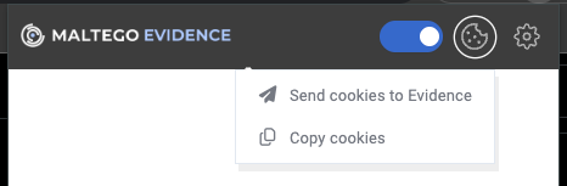
- Choose the second option, "Copy cookies".
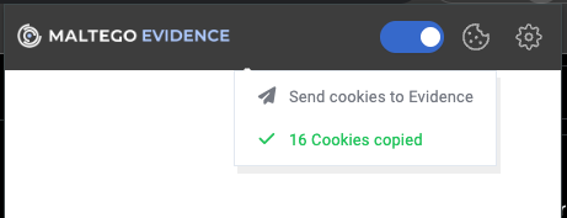
The cookies are now on your clipboard and can be pasted into the crawling profile form.
Automatic cookies assignment to a crawling profile
Note This feature is only available in the Collaboration variant. Before you start, make sure you are not currently signed in to the target account in your browser.- Log in to the target account (including MFA or any additional security checks).
- Open the Evidence Browser Extension and click the Cookies icon.
- Choose the second option, "Send cookies to Evidence".
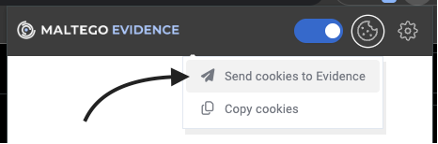
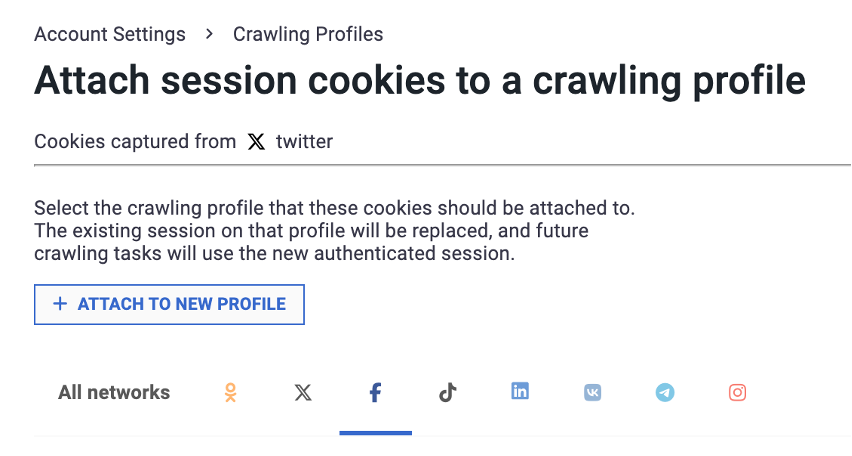
- You are redirected to Evidence Collaboration → Crawling profiles, where you can pick the profile the cookies should be attached to.

- Once a profile is selected, the Attach Cookies button becomes active.
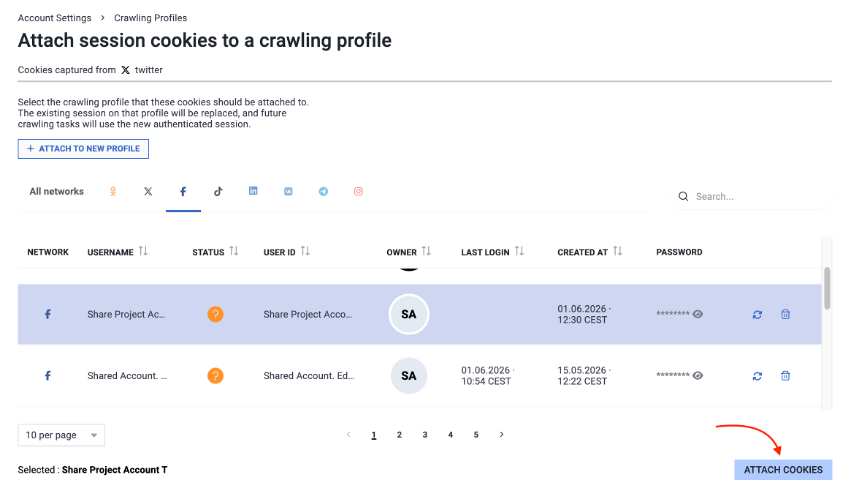
- Click it to assign the cookies to the selected profile.
Assignment to a new profile
Use this flow when the profile does not exist yet.
- Follow steps 1–3 of the automatic flow above.
- Click "+ ATTACH TO NEW PROFILE" at the top-left of the page.
- You are redirected to the Crawling profile form with the cookies field prefilled.
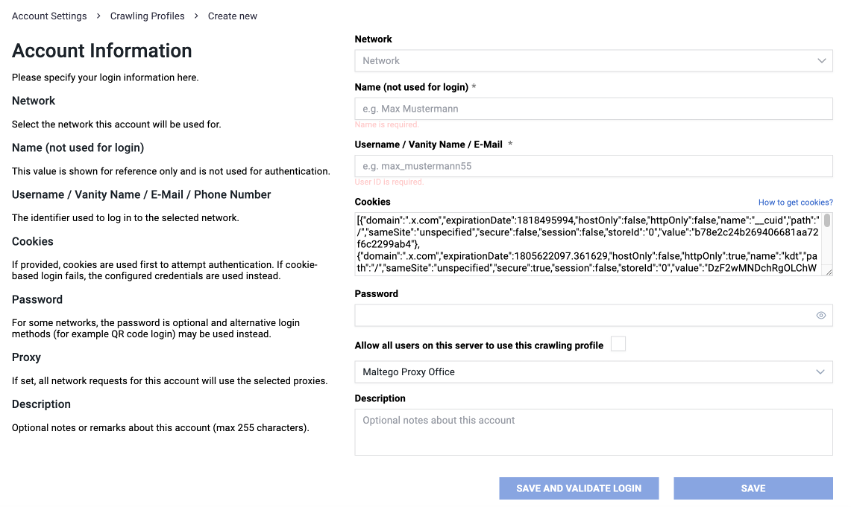
- Fill in the remaining fields and save the profile.
Using the extension in Chrome Incognito mode
Working in an Incognito window keeps the browser session alive, so the cookies you copy don't go stale — a useful pattern when reusing profiles. Enable the extension for Incognito as follows:
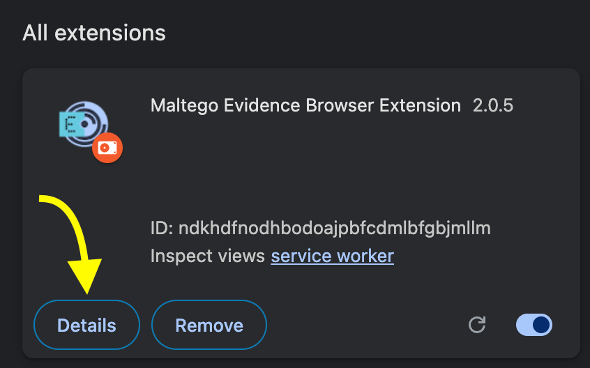
- Open the target extension's Details page from chrome://extensions.
- Scroll down to Allow in incognito.
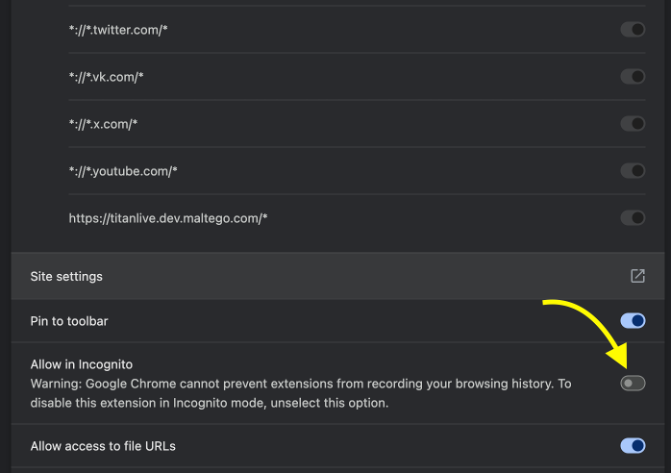
- Toggle Allow in incognito on.

The extension is now available in Incognito windows.
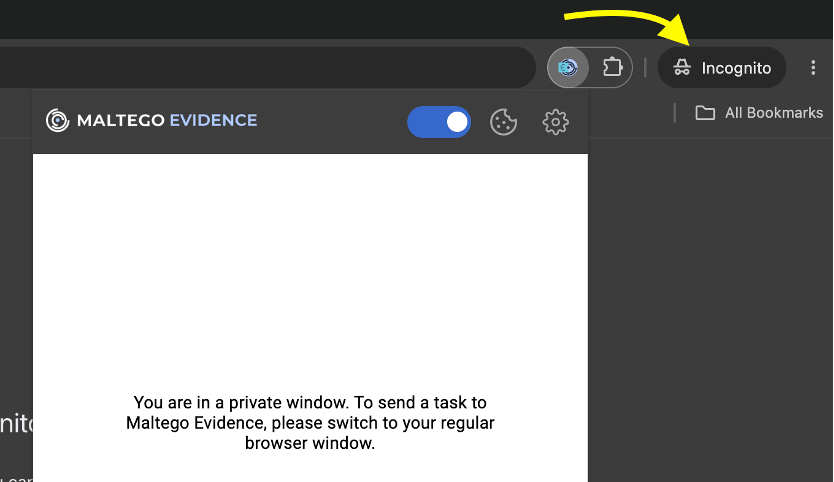
As shown by the extension itself, sending tasks to Maltego Evidence is not available from a private window — but Copy cookies and Send cookies to Evidence remain available. Sign in on the target site and continue with the flows described above.
The extension also works across separate Chrome profiles, which can further simplify managing crawling profiles. Unlike Incognito, standard Chrome profiles have no restrictions — the extension is fully functional, including sending tasks to Maltego Evidence.
Note Sending cookies directly to Evidence is available only in the Enterprise (Collaboration) variant. In the Desktop variant you can still copy cookies from sites, but sending them to the application is not supported.Important note on cookie validity
After copying the cookies, you should not perform any actions in your browser that the social network might interpret as a new login, profile switch, or security-related change. Such actions can cause existing session cookies to be invalidated server-side and may require them to be captured again.
Setting up additional crawling profiles
If you want to capture cookies for additional crawling profiles, repeat the process described above.
Deleting browser data can help create clean login states, but does not automatically invalidate cookies that have already been copied.
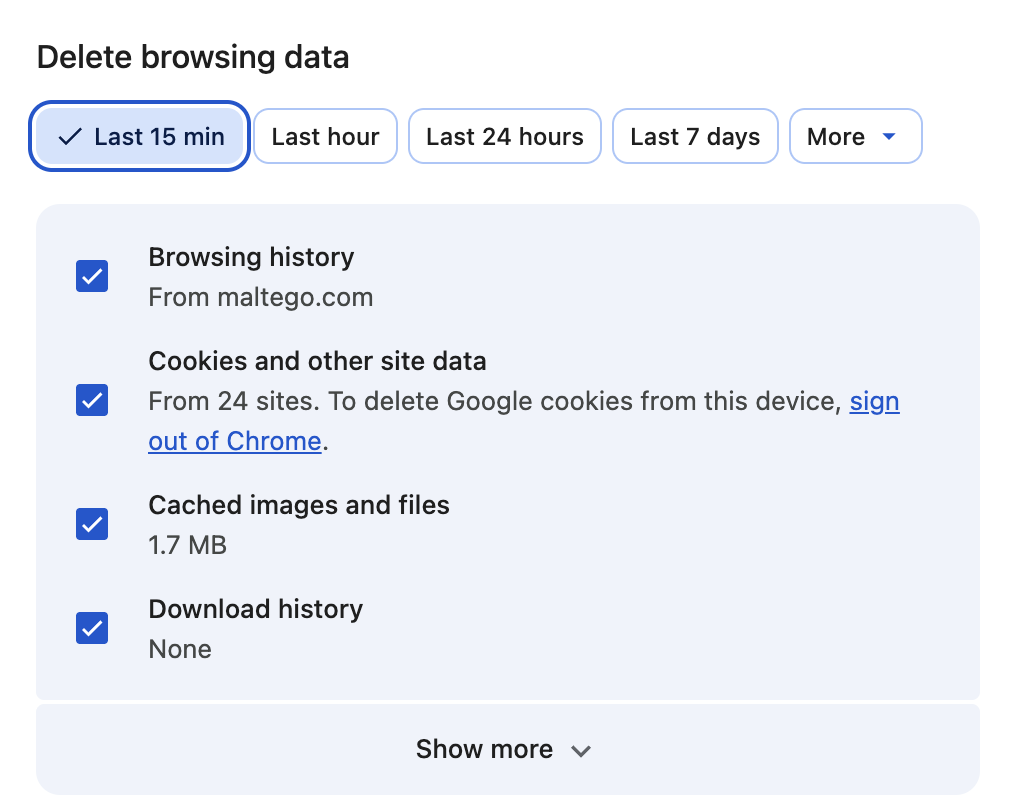
- Optionally delete browser data from the last 15 minutes (or the last hour if needed). In Chrome, head to Settings -> Privacy and Security -> Delete Browsing Data.
- Ensure that no account is currently being used.
- Repeat the login and cookie capture process for the next crawling profile.
Troubleshooting
Cookies do not work
- Session expired → copy new cookies
- Cookies were copied while not logged in
- Some networks invalidate cookies when logging in from another device
No cookies visible
- Not properly logged in
- Wrong domain selected
- The network uses multiple domains for login and content
Evidence still requires verification
- Cookies are incomplete or invalid
- The network requires additional security measures
Summary
Adding cookies to crawling profiles is optional but can significantly improve login stability. Since session cookies are managed server-side by the respective network, certain actions can lead to their invalidation. This guide describes a secure and reproducible process for capturing and using cookies in Maltego Evidence.