In some cases, investigators may need to move the Maltego Evidence data folder to a different storage location. This is typically done to relocate crawled data to a larger storage drive or when migrating Maltego Evidence to a new machine.
The following steps explain how to safely move the Evidence data directory while ensuring that all previous projects and files remain accessible.
Moving the Evidence Folder
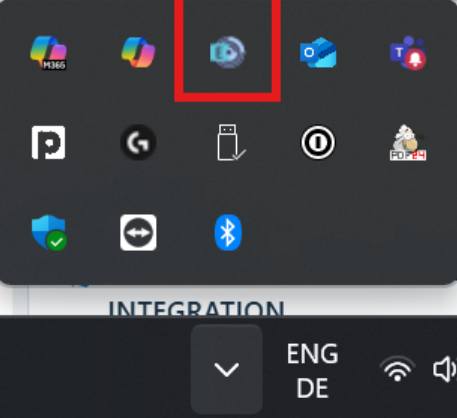
Step 1: Close Maltego Evidence completely, including the application icon in the taskbar.
Step 2: Move the Evidence folder from its original location to the desired destination on your system.
The default location of the Evidence folder is:
C:\Users\<USER>\AppData\Roaming\Maltego Evidence
Step 3: Restart Maltego Evidence.
Step 4: When the configuration window appears, select Custom Settings and choose the new folder location.
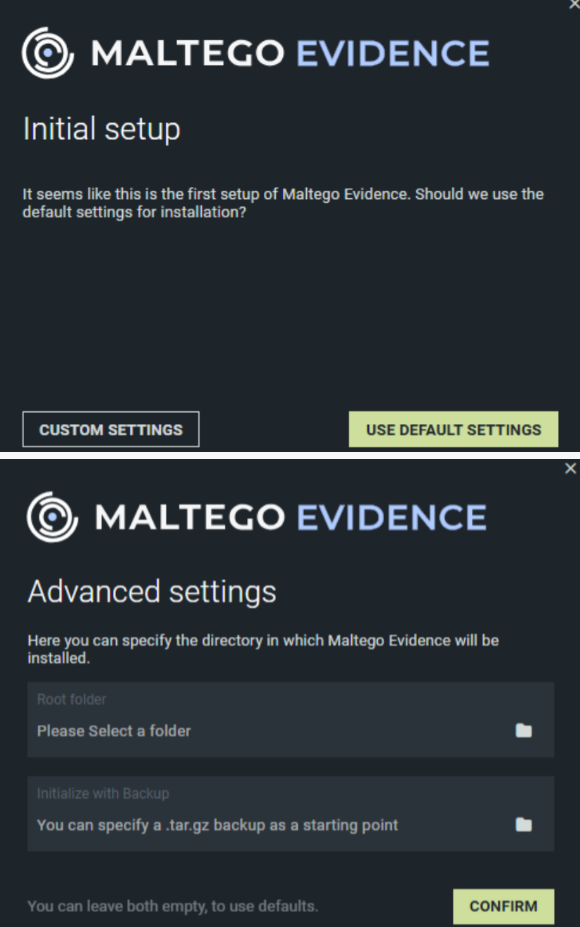
Step 5: Confirm your selection. Maltego Evidence should now start normally and load all previous projects and files from the new location.
If the application does not start correctly or the data is not accessible, create a support ticket on support.maltego.com.
Moving the Evidence Folder to a New Machine
When migrating the entire Maltego Evidence folder to another machine, it is important to also transfer the conf.yaml configuration file.
This file contains the database access credentials used by Maltego Evidence. If the configuration file is not copied, the application will not be able to connect to the database and will fail to start.
Initially, the folder structure must match the exact path used on the original machine. Once the application starts successfully, the location can then be updated using the steps described in this article.
If the configuration is incorrect, you may encounter the following database error:
Error: ERROR 1045 (28000): Access denied for user 'root'@'localhost' (using password: YES)
Important Considerations
Reinstalling Maltego Evidence to a different file path using the installer changes the SHN2_ROOT environment variable to the new installation directory.
While it is technically possible to create a custom operating system environment variable to override the SHN2_ROOT path used by Maltego Evidence, this approach is strongly discouraged and should only be used as a last resort.
Tip: Always ensure the Evidence data folder and configuration file (conf.yaml) are backed up before moving or modifying the installation directory. This helps prevent accidental data loss or database connection issues.