Overview
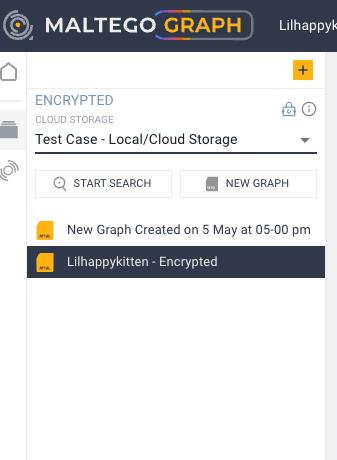
Local and Cloud Storage in Maltego One allows you to store and manage both graphs and search results in a unified system. All your investigation data is organized within Cases and accessed through a single Cases drawer, making it easier to switch between workflows and maintain structured investigations.
Selecting between saving and accessing graphs in local and cloud storage allows you to:
- Save graphs and searches to local folders or cloud cases
- Choose between encrypted and unencrypted cloud storage for graph data
- Access all cases, graphs, and searches from a single Cases drawer
- Organize all investigation data within a unified case management system
- Start a search or a new graph directly from the Cases drawer
- Manage local folders by adding, removing, or refreshing them
Please note that this feature works exclusively on Google Chrome or Microsoft Edge browsers.
Saving to cloud
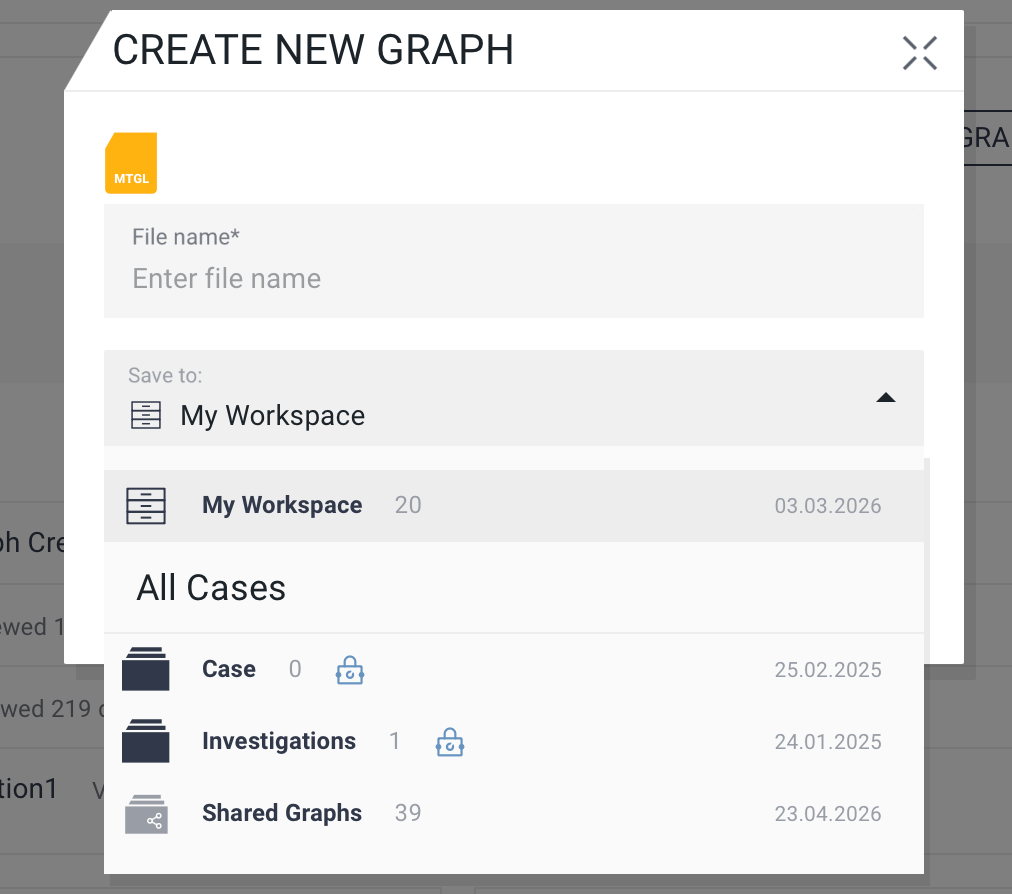
- From the Maltego app home page, click on the plus icon to create a new graph or use the Search widget to start a new search.
- Select the folder within Cases where you would like to save the graph.
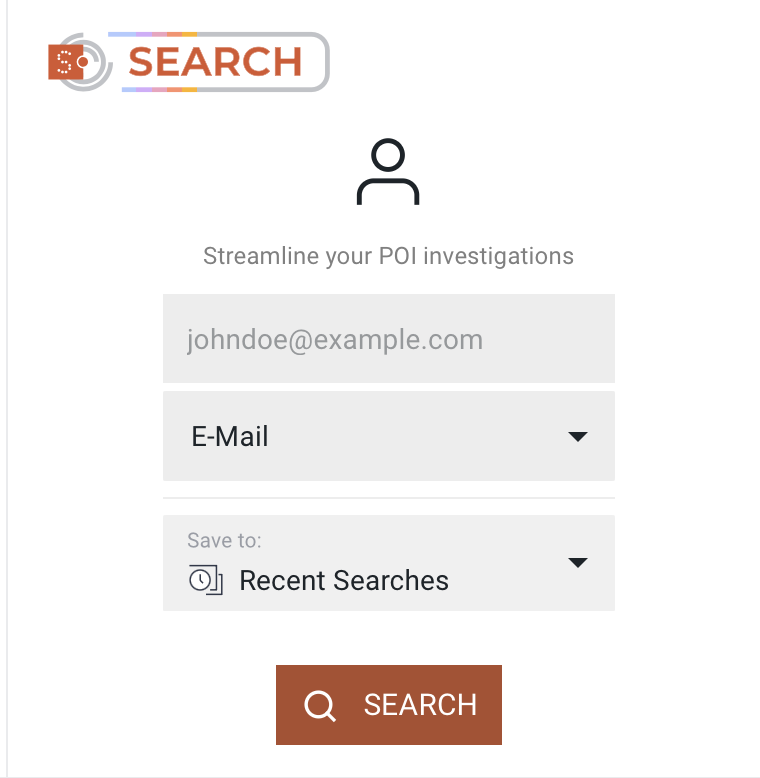
- For the search, select the case folder from the dropdown list.
Saving locally
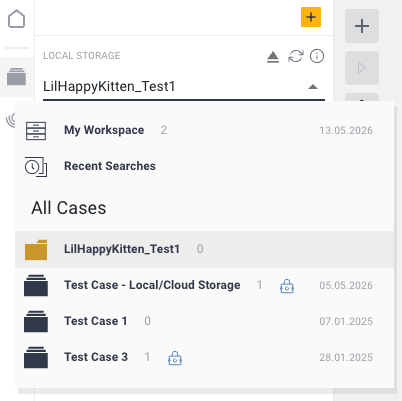
To save graphs and searches on the local folder, you first need to link the local folder and give Maltego One access to its contents.
To do that:
- Open the Cases drawer.
- Select local storage by clicking on the plus icon and "Link Local Folder"
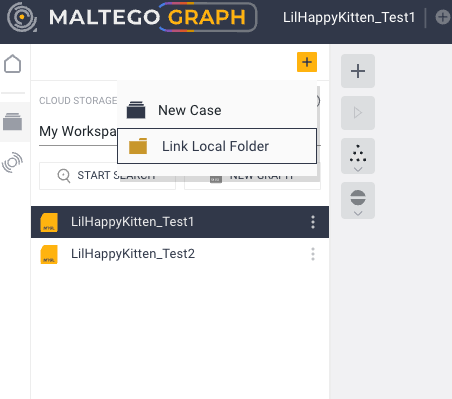
- Choose the folder on your machine.
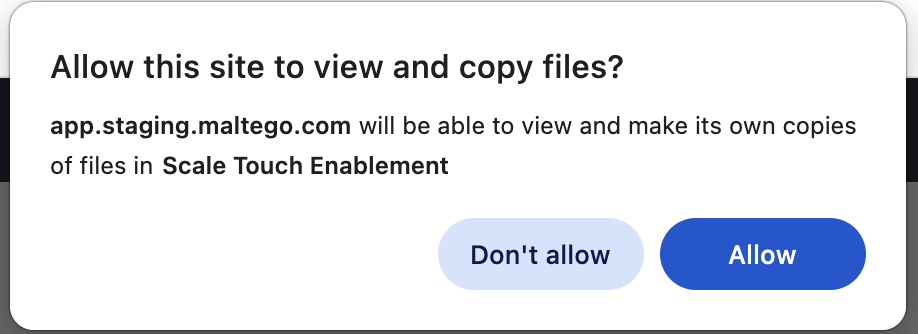
Please note that linking the local folder to Maltego One will require you to allow the site to view and copy files.
Accessing files in Recent Searches
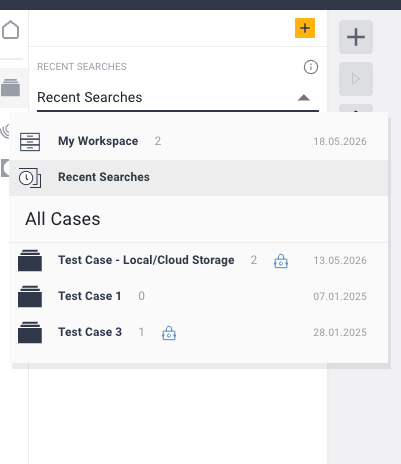
Your recent searches in Maltego Search can be saved to and found in the Recent Searches.
To do that:
- Open the Cases drawer
- Select Recent Searches.
Starting a search or a graph from the Cases drawer
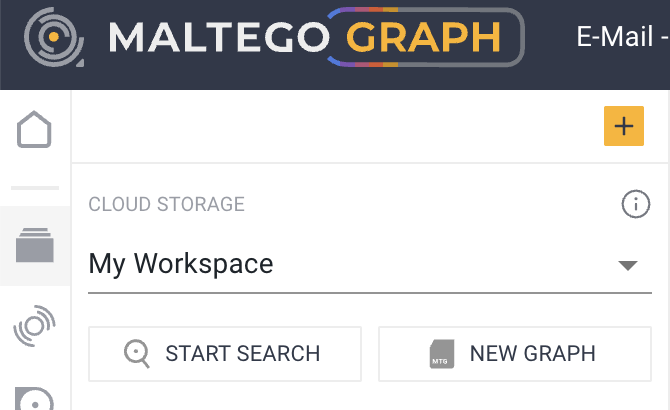
You can start a new search or a new graph directly from the Cases drawer.
To do that, click either Start Search or New Graph in the Cases drawer.
Accessing encrypted cloud storage files
You can also access and save to encrypted folders from the Cases drawer. The encrypted folders are marked with the lock icon and will require you to enter the Master Password first.